Published: Jun 12, 2026, 3:46 AM · Last updated: Jul 16, 2026, 6:58 AM
Transparent Backgrounds, Clean Frames, and ZIP Exports: A Technical Breakdown of Production-Ready Sprite Assets
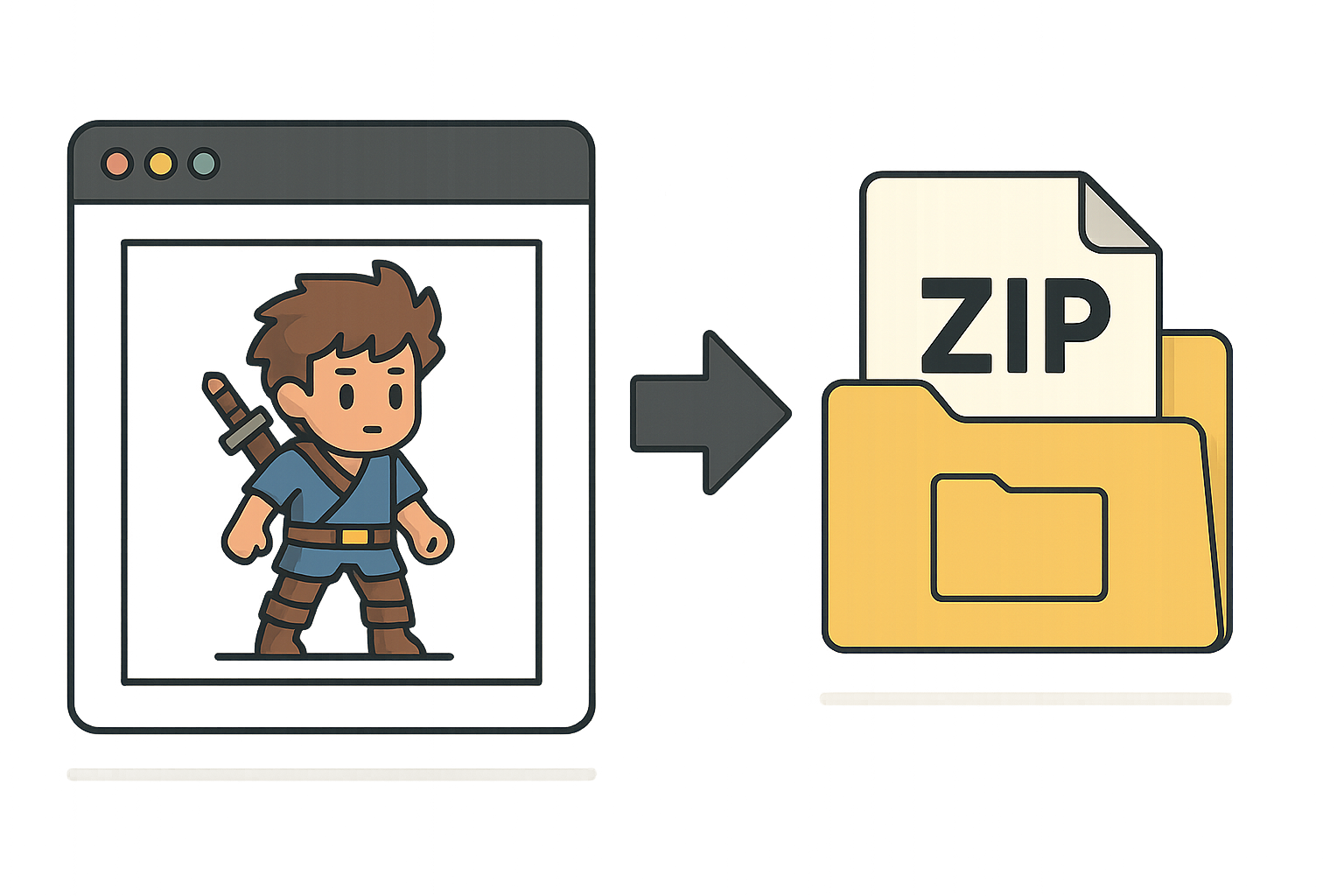
Transparent backgrounds, clean frames, ZIPs that actually work
Nobody warns you about this when you start making a 2D game. The drawing is maybe 20% of the job. The rest is cleanup. Trimming alpha. Making sure your idle frame doesn't leak a single white pixel into your shader. Naming files in a way that future-you won't curse. Zipping the whole thing in a folder structure your engine can actually digest.
That's the gap AutoSprites AI is going after. Not "make pretty art." Make assets that drop into a project and just work.
Three things matter more than they sound: transparent backgrounds, clean frames, ZIP exports. Here's why.
Transparent backgrounds aren't optional
You've seen the halo. You pull a sprite into Unity or Godot, zoom in, and there's a faint white outline ghosting your character. That halo usually means the generator flattened the background to near-white instead of giving you a real alpha channel. Some tools ship that and call it "transparent." It isn't.
A real transparent background means every non-character pixel has an alpha value of zero. No fringe. No half-translucent ghosting where the antialiasing tried to help and ended up wrapping your goblin in cling film.
AutoSprites bakes the alpha in on the way out. So you're not opening every frame in Photoshop to magic-wand the backdrop off. For a solo dev, that's hours per character you get back.
Clean frames
Sounds like fluff until you've spent an afternoon fixing dirty ones.
What dirty frames look like in real life: frame 3 of a run cycle has the character's foot two pixels higher than frame 4. A stray pixel floats off the cape in a single idle frame. Canvas sizes drift across an 8-frame sequence, and when you drop it into a sprite sheet, the character jitters like they've been hitting espresso.
Clean means every frame shares the same canvas, the character is anchored consistently, and there's no orphaned noise hanging around the bounding box. Boring, repetitive, exactly the kind of cleanup most people skip until QA flags it.
Here's why this matters for an AI tool in particular. Most generative image tools produce one picture at a time and have no concept of frame-to-frame consistency. You get eight gorgeous, unrelated images. AutoSprites treats the animation as the unit instead of the frame. That's the only way the math holds up for actual game use.
The ZIP
Least sexy feature on the list. Saves the most time.
You finish generating and get a ZIP. The frames inside are organized in a way your engine can swallow. No clicking through a gallery and right-click-saving 32 PNGs one by one. No renaming idle_01.png through idle_08.png because the tool spat them out as "generation_4f3a91b.png."
If you've ever tried to import a folder of mismatched-name frames into a sprite atlas tool, you already know why this might be the most valuable thing in the pipeline. It's the difference between shipping this week and shipping next month.
Against the existing toolchain
The standard 2D workflow is Aseprite or Piskel for pixel art, Krita for higher-res stuff, and Spine or Dragon Bones if you want skeletal animation on top. These are great tools. I'm not here to bury them. Aseprite in particular is basically a religion among pixel artists, deservedly.
But they all assume you can draw. Or that you're at least willing to learn. Lospec's a wonderful resource once you've got the chops. GraphicsGale, if you're old-school. GlueIT solves a packing problem, not a creation problem. None of them help you if the situation is: I have a GDD, I have a deadline, and I can't draw a convincing goblin to save my life.
That's a different problem. The honest comparison isn't "better than Aseprite." It's "for the people who were never going to open Aseprite in the first place."
Who it's actually for
Indie devs working solo, mostly. Designers who can prototype gameplay but stall the second art is on the line. Educators running a six-week class where the students need to ship something playable and don't have time to also become illustrators. Studios who need placeholder art for a vertical slice and would rather not pull a senior artist off the boss fight.
It won't replace a dedicated artist on a AAA project. It shouldn't try. But for the long middle of the market, indie, educational, prototype, jam, the math gets clear pretty fast. Cranking out dozens of animated sprites in the time it'd take to sketch one changes how small teams can move.
Worth mentioning too: this is the sort of tool platforms like CreatorFetch tend to surface when indie devs are hunting for asset pipelines that don't require a second full-time hire. Make of that what you will.
How to actually test one
If you're evaluating any sprite tool, AI or not, run it through three checks before you commit.
First, drop an exported frame into your engine and zoom to 4x. Any fringing? Any half-transparent edge pixels where there shouldn't be? If yes, the alpha's dirty.
Second, load a full animation and play it. Does the character stay anchored, or does it bounce around like the canvas keeps resizing? That tells you whether the frames are actually clean.
Third, count the clicks from "I have an idea" to "the files are in my project folder." More than ten and the export pipeline is going to bleed your time.
That's the bar. Anything that clears it is worth a look. If you want to see how AutoSprites handles those three on your own concept, the studio is at autosprites.com.
Written by the CreatorFetch.com editorial team.